NopFashion Theme + 15 Plugin Bundle for NopCommerce
NopBeauty Theme + 12 Plugin Bundle for NopCommerce
NopNoor Theme + 16 Plugin Bundle for NopCommerce
NopGadget Theme + 18 Plugin Bundle for NopCommerce
NopEthnic Theme + 17 Plugin Bundle for NopCommerce
NopFurniture Theme + 19 Plugin Bundle for NopCommerce
NopPharma Theme + 16 Plugin Bundle for NopCommerce
NopVogue Theme + 17 Plugin Bundle for NopCommerce
NopGadence Theme + 18 Plugin Bundle for NopCommerce
NopBeauty Theme + 12 Plugin Bundle for NopCommerce
Created on: Mar 18, 2026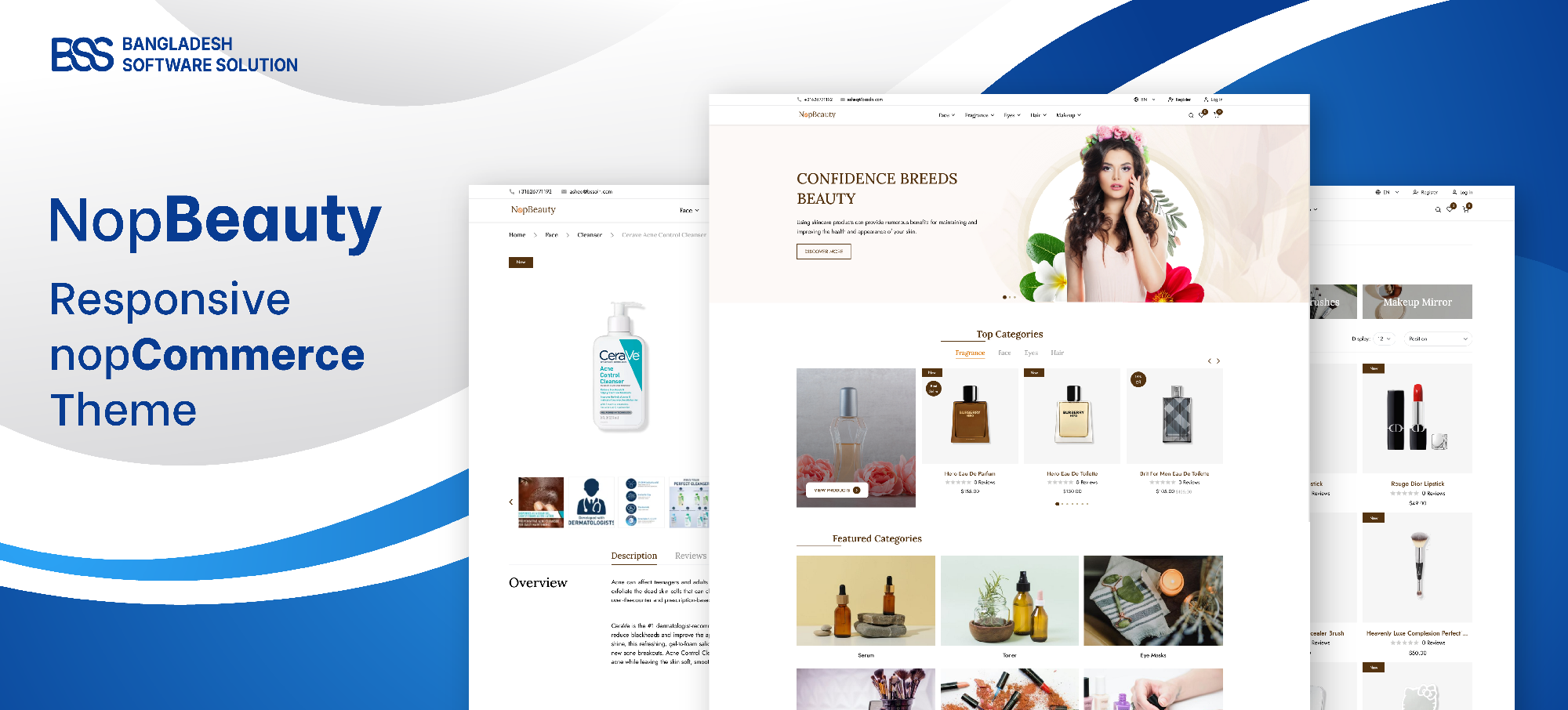
Welcome to the user manual of the NopBeauty Theme theme for nopCommerce.NopBeauty Theme is a responsive theme developed by Bangladesh Software Solution. This documentation provides all the necessary information to customize a nopCommerce application using the features that come with the theme. The theme comes with 7 plugins that enable these features. The installation process along with a full description of the plugins will be described in the following chapters.
PRE-REQUISITES
- The theme requires installation of the BSS Core plugin first.
INSTALLATION
- Go to the Order Details Page and Download plugin package
- Go to Administration → Configuration → Local plugins
- Within the bundle, you get all the required files, including BSS.Core
- Upload the zip files using the ‘Upload plugin or theme’ button
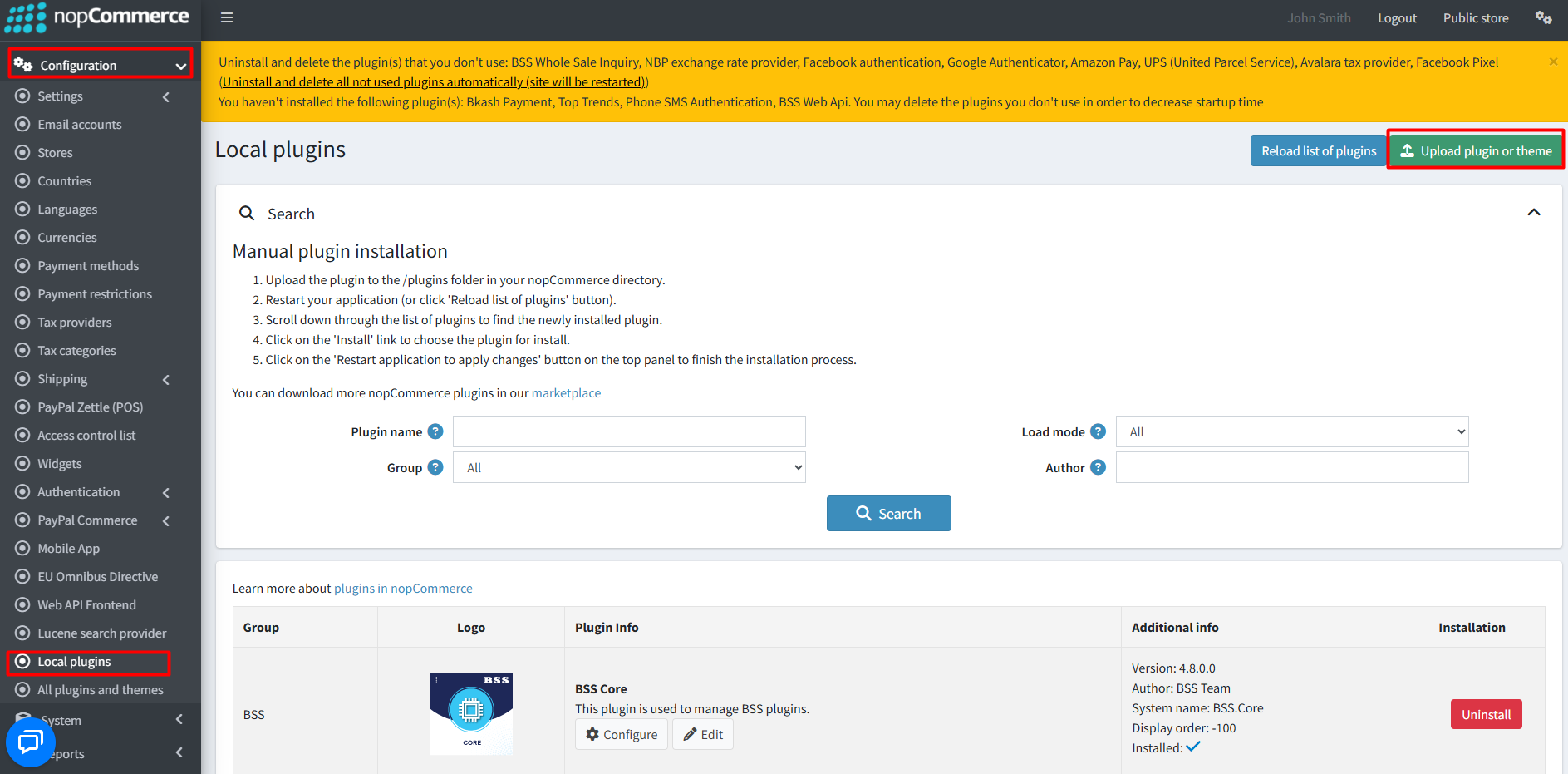
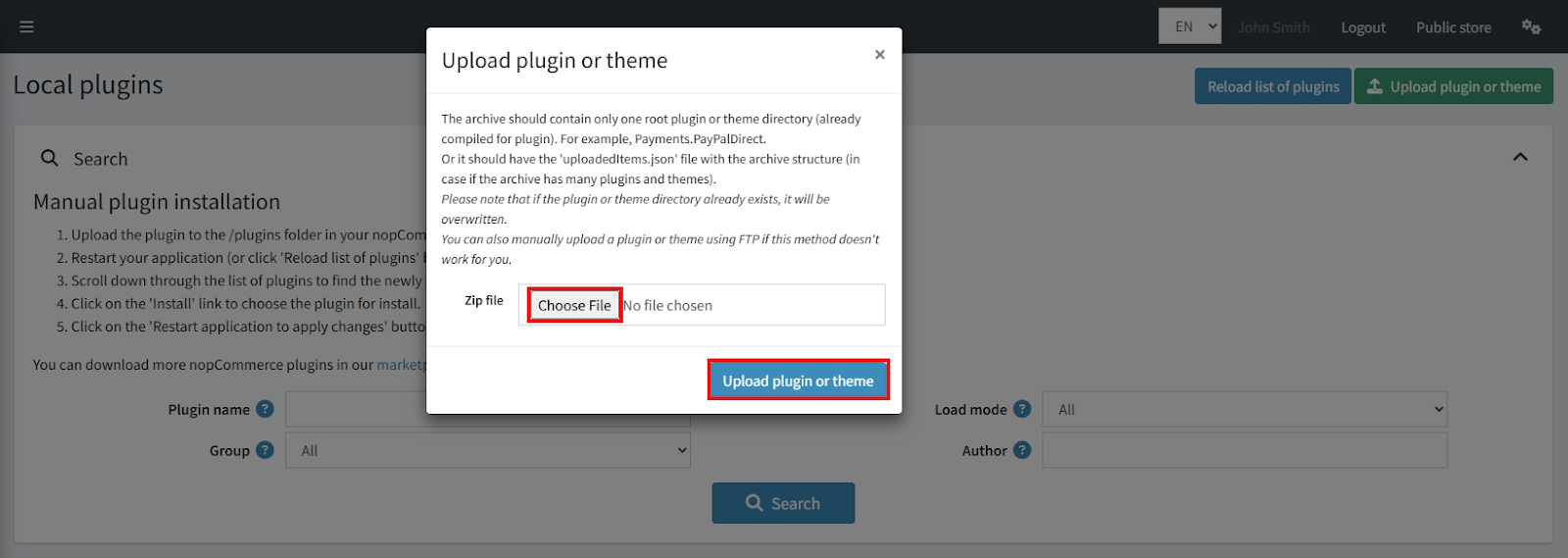
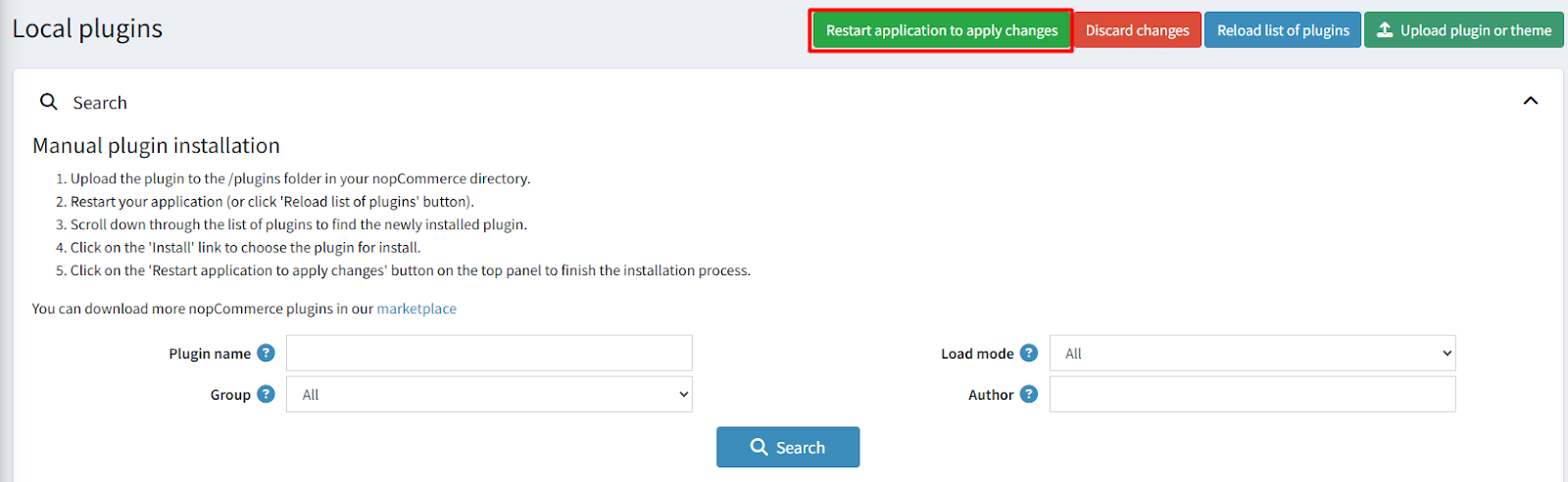
- After uploading, reload the ‘list of plugins’ and install the ‘BSS Core’ plugin first. Then scroll or search for ‘NopBeauty’ and install it.
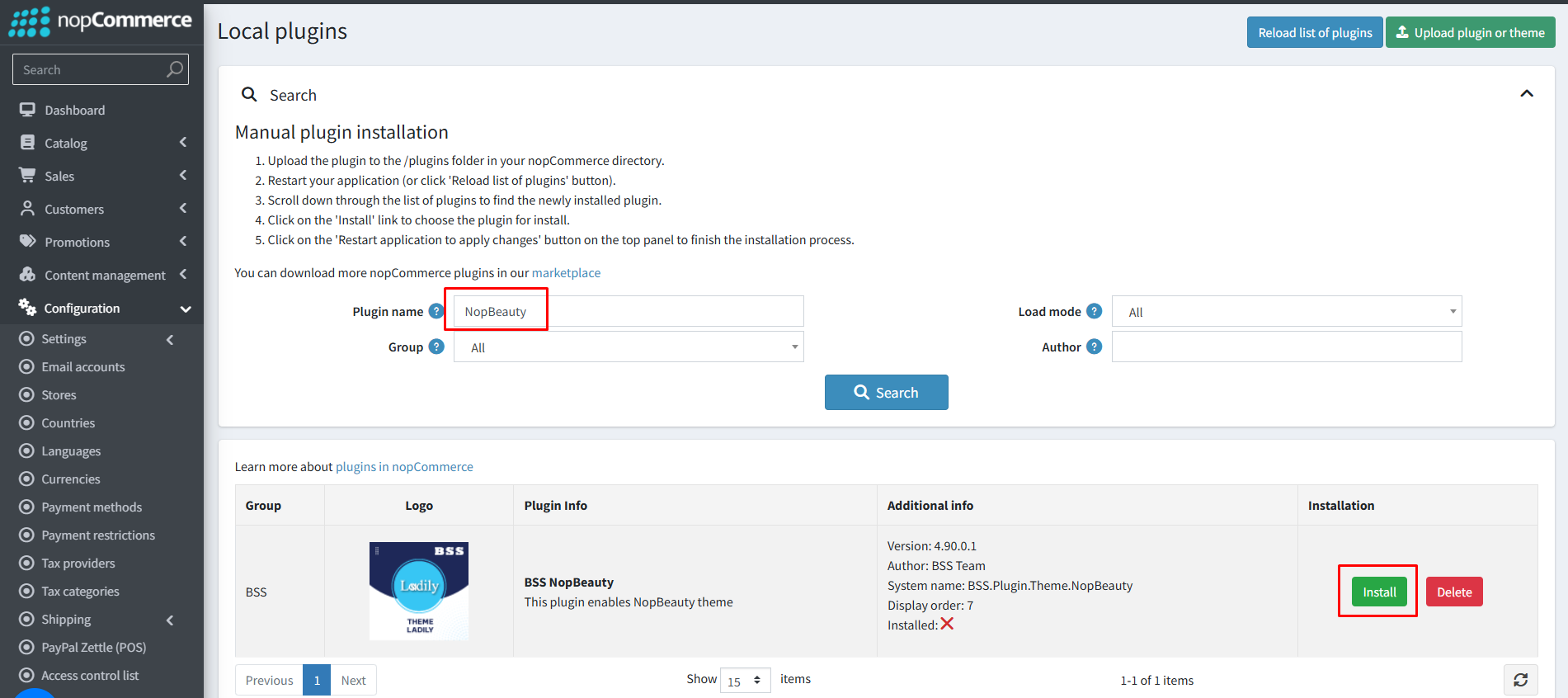
- To make the plugins functional, restart the application.
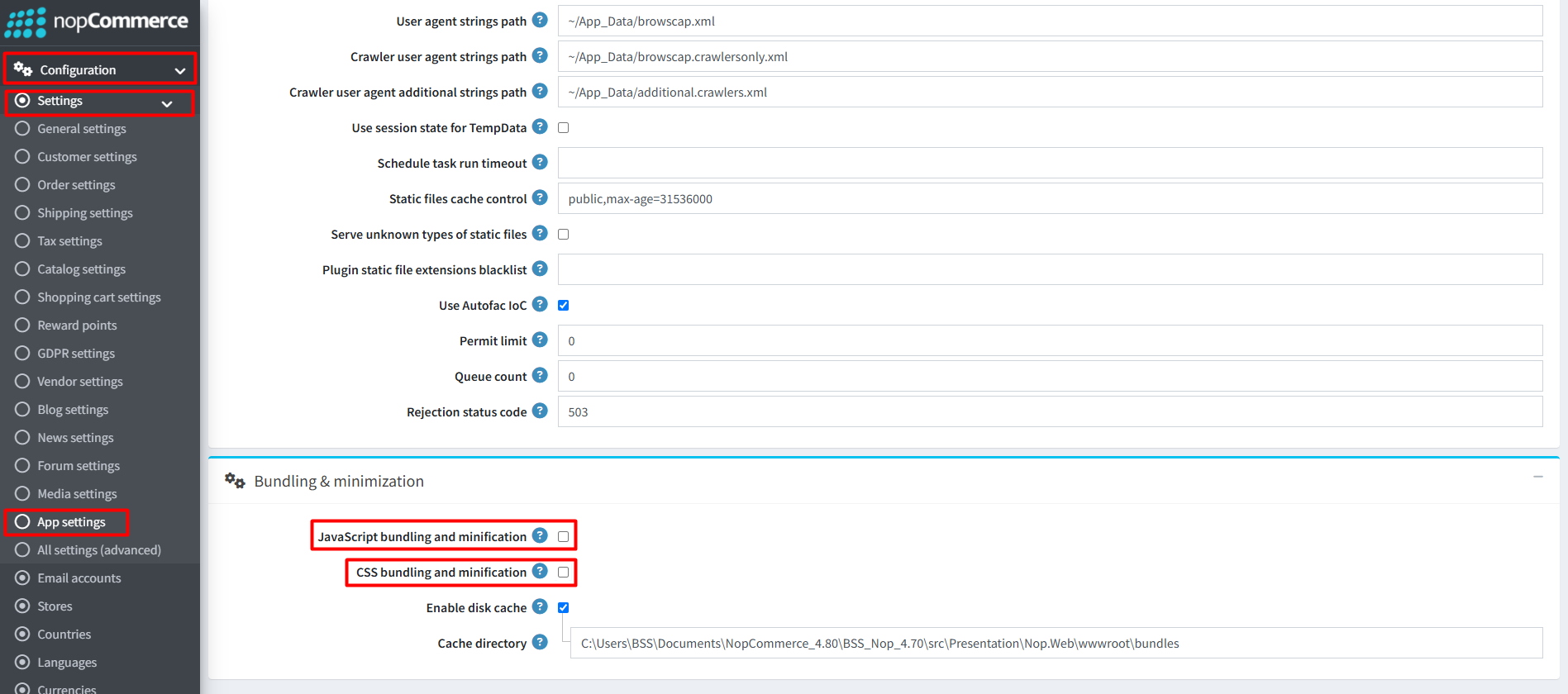
Recommendation: Go to > App Settings. If you find JavaScript bundling and minification, CSS bundling and minification are checked, then uncheck these two options and disable them.
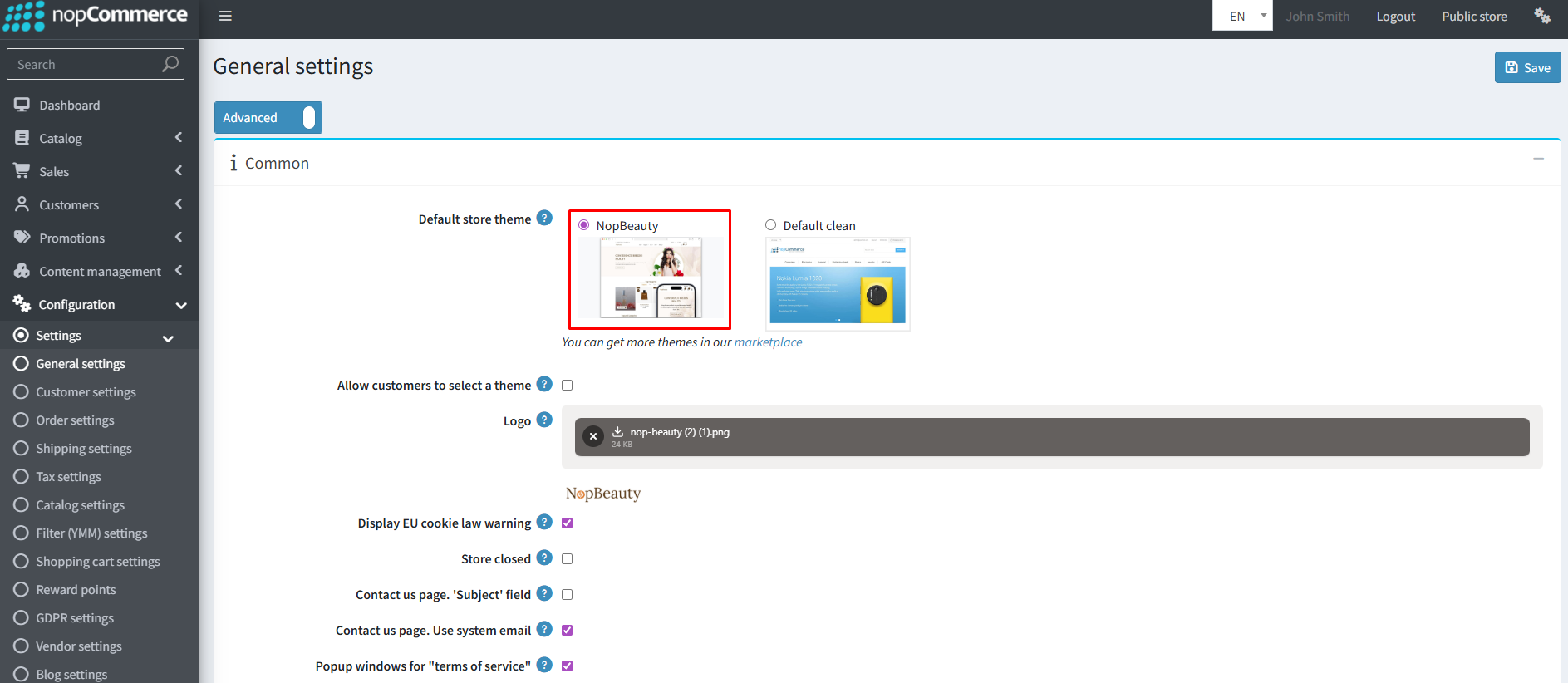
ENABLE THE THEME
- Go to Configuration → Settings → General settings in the admin panel.
- Choose NopBeauty as the Default store theme and save it.
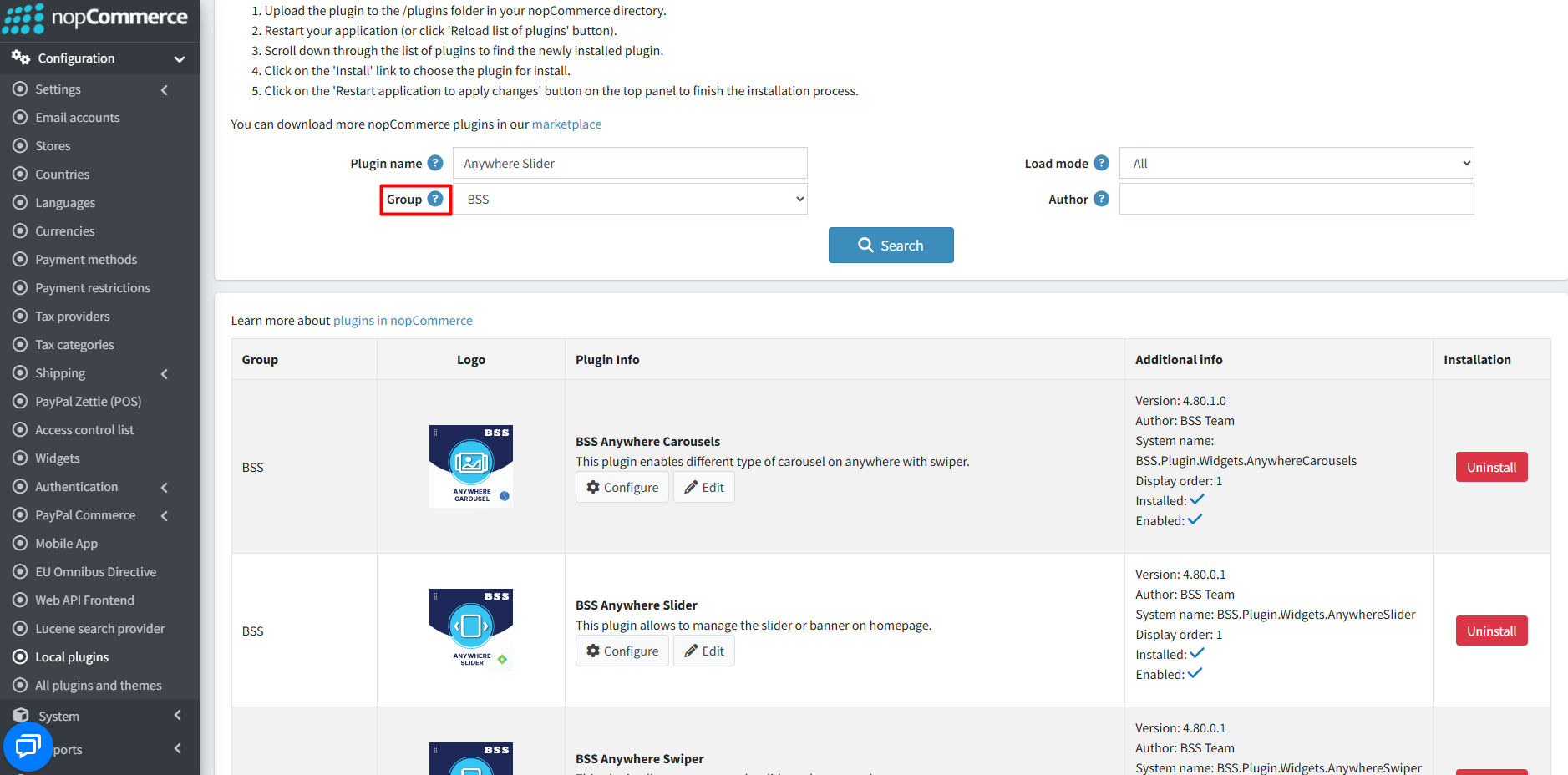
ENABLE OTHER ASSOCIATED PLUGINS
- Go to Administration → Configuration → Local plugins.
- Search the plugins associated with NopBeauty theme using the Group Name ‘BSS’.
- To get the expected homepage view, install plugins by using the Group Name or Plugin Name.
LICENSE KEY
- After purchasing, contact BSS to receive the license key via email.
- First-time configuration of the theme or bundled plugins prompts entry of the License string. It can also be entered via BSS → Core settings → License.
- After entering the License string, save it and clear the cache.

CONFIGURATION
- Go to Administration → BSS → Themes → NopBeauty → Configuration to set the theme configuration.
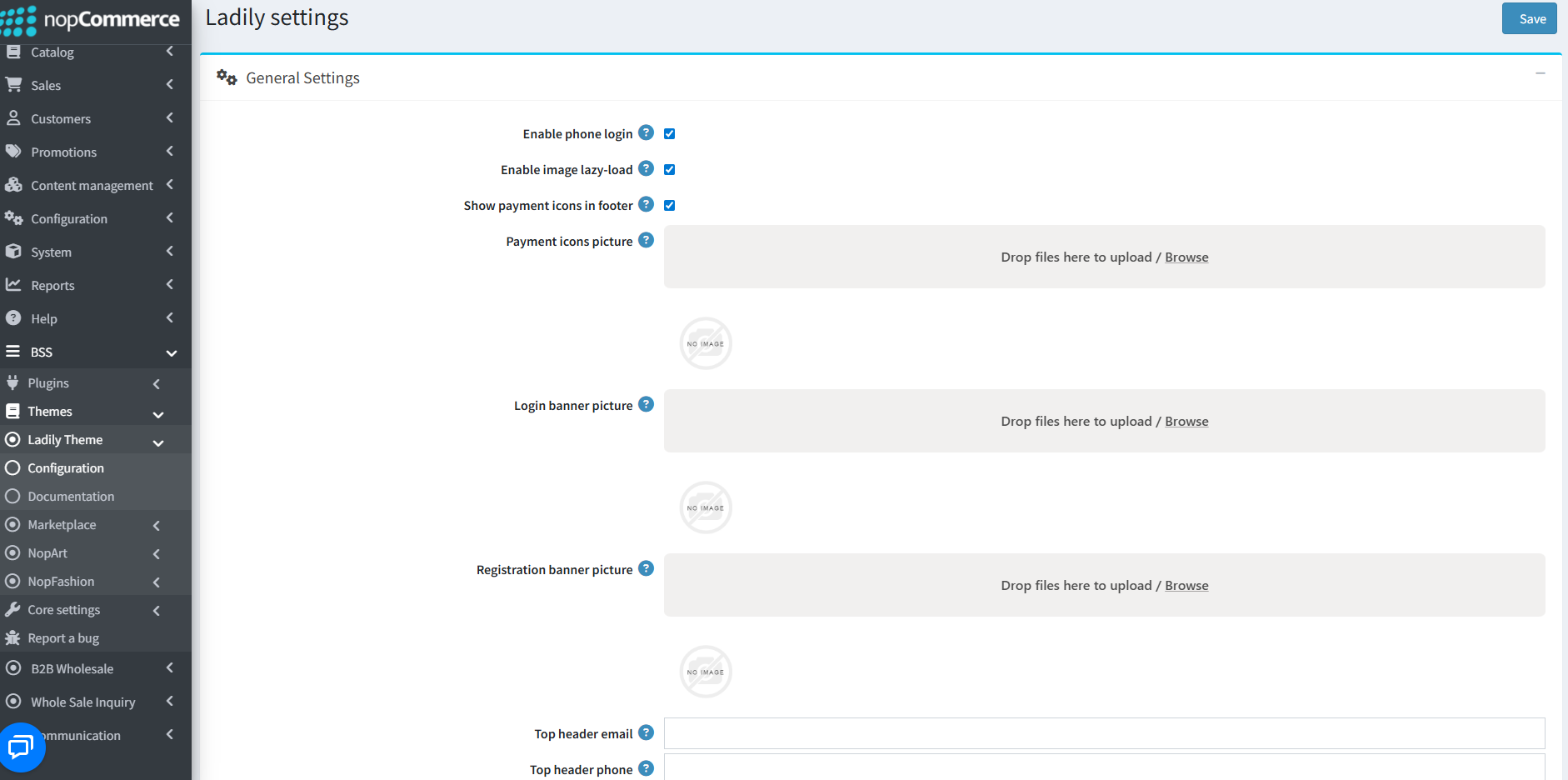
GENERAL SETTINGS
- Enable phone login: Check this box to allow login with phone.
- Enable image lazy-load: Enable lazy-load to load product box images only when they appear on the screen while scrolling
- Show payment icons in footer: Check box to display payment icons at the footer section of the page
- Payment icons picture: Upload payment icons picture (expected image height: 30px)
- Login banner picture: Upload or browse login banner image to display on the login page
- Registration banner picture: Upload or browse registration banner image to display on the registration page
- Top header email: Enter the email address to display in the top header of the page
- Top header phone: Enter the phone to display in the top header of the page
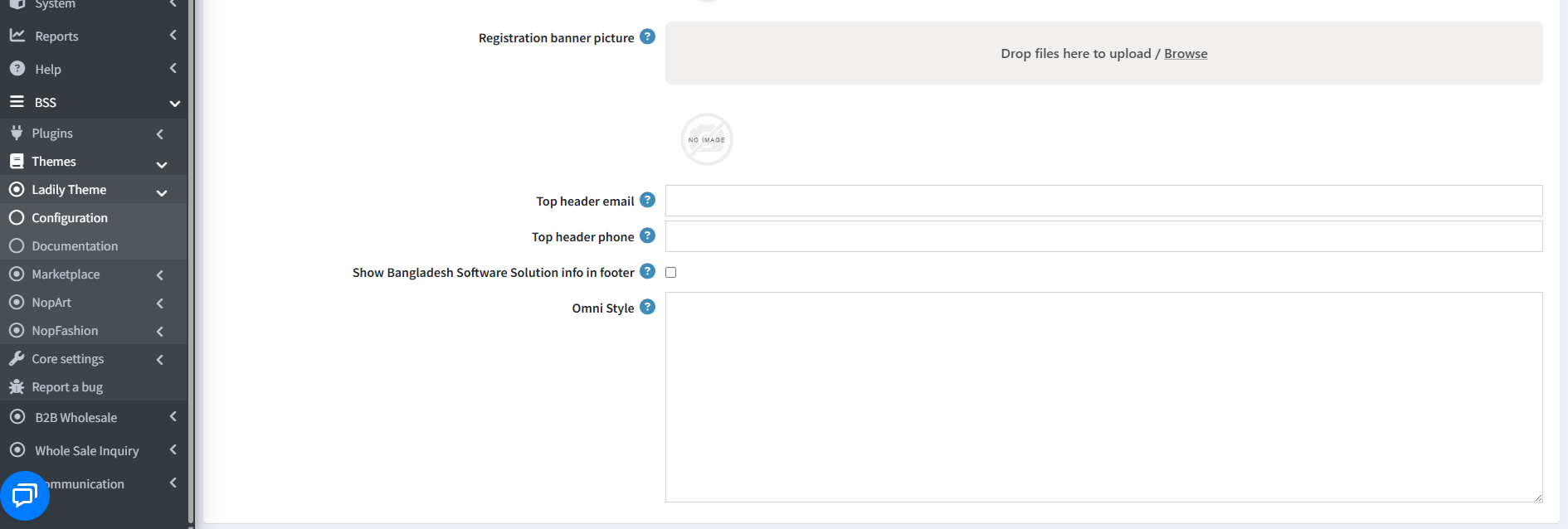
- Show Bangladesh Software Solution info in footer: Check box to show Bangladesh Software Solution info in the footer section
- Omni Style: If you want to add custom styles for your site write in this section. Custom design will be rendered in the head section of the html page
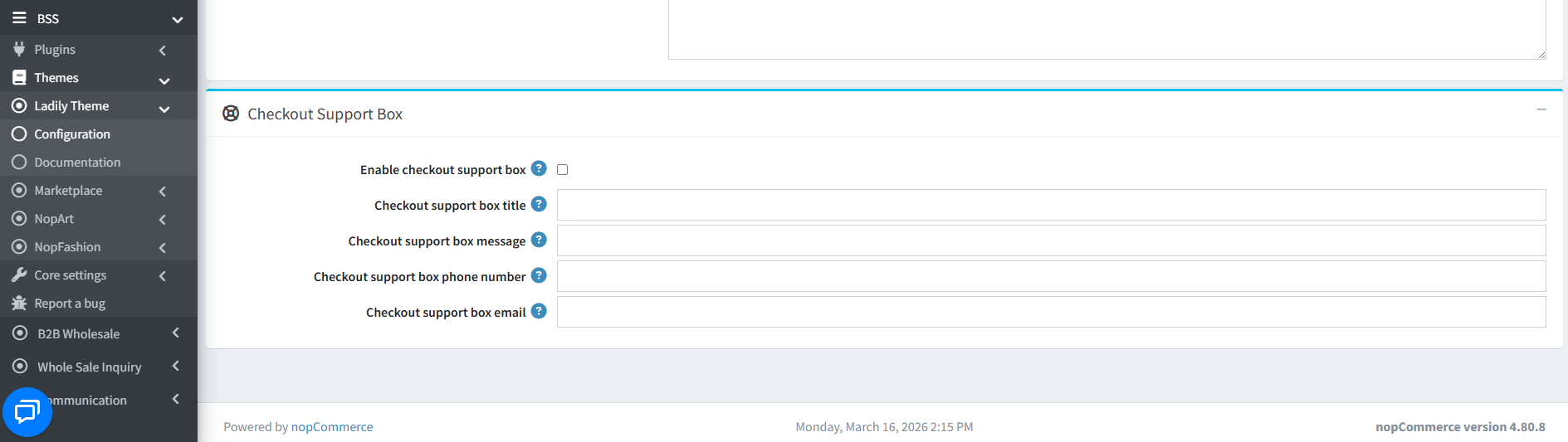
Checkout Support Box
- Enable checkout support box: Check box to enable checkout support box
- Checkout support box title: Enter title of the checkout support box
- Checkout support box message: Enter message of the checkout support box
- Checkout support box phone number: Enter phone number of the checkout support box
- Checkout support box email: Enter email address of the checkout support box
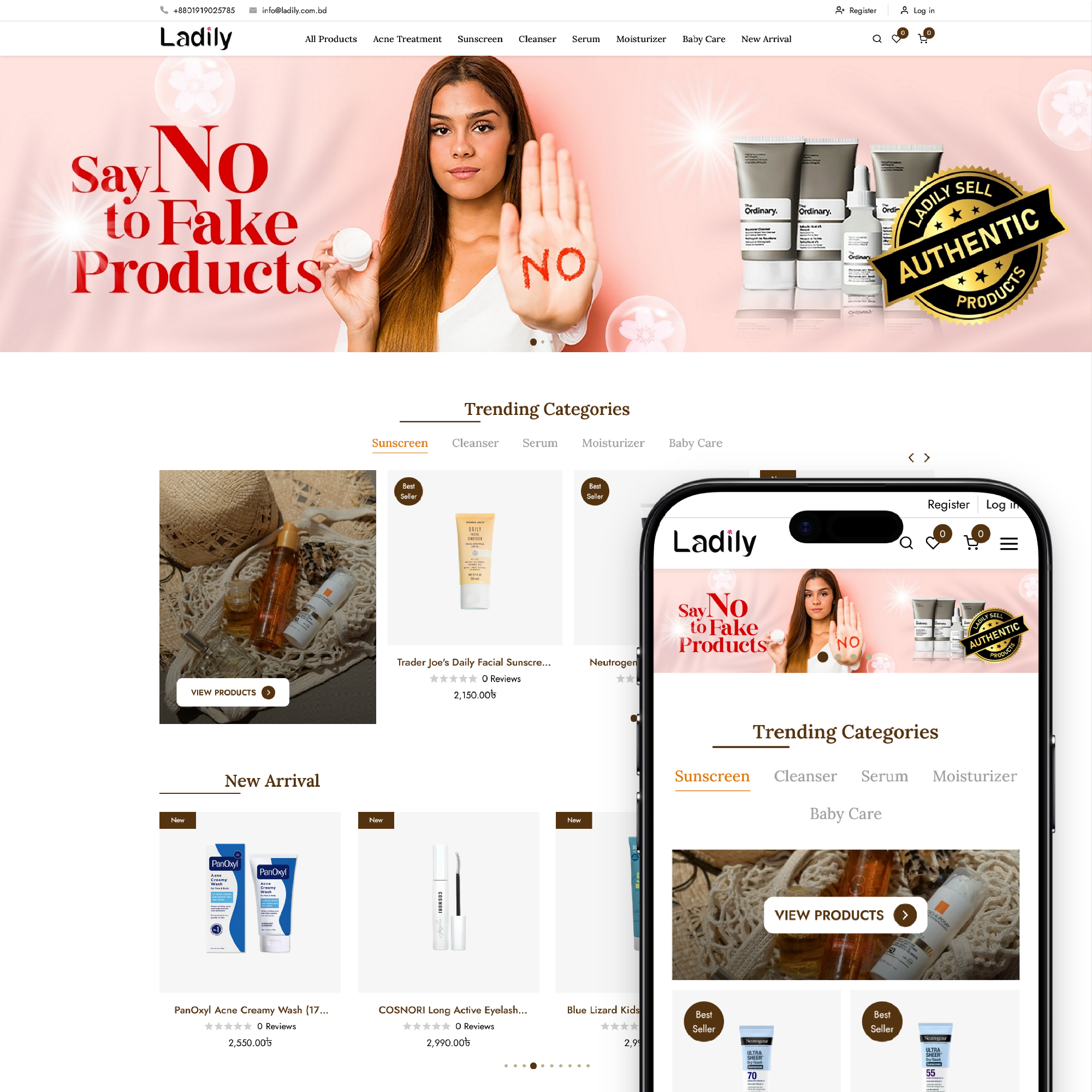
PUBLIC VIEW
PLUGIN CONFIGURATION
Documentation Menu
NopFashion Theme + 15 Plugin Bundle for NopCommerce
NopBeauty Theme + 12 Plugin Bundle for NopCommerce
NopNoor Theme + 16 Plugin Bundle for NopCommerce
NopGadget Theme + 18 Plugin Bundle for NopCommerce
NopEthnic Theme + 17 Plugin Bundle for NopCommerce
NopFurniture Theme + 19 Plugin Bundle for NopCommerce
NopPharma Theme + 16 Plugin Bundle for NopCommerce
NopVogue Theme + 17 Plugin Bundle for NopCommerce
NopGadence Theme + 18 Plugin Bundle for NopCommerce